
Allocations overview
Offer a limited release to chosen customers for a set time, and learn how an allocation moves from draft to closed.
An allocation offers a limited release to a chosen group of customers for a set period. For example, you might give club members first access to a spring release of 2022 Reserve Cabernet: each member can buy up to a set number of bottles and ask for more on a wishlist.
Allocations may not be enabled for every store, and staff need the Allocations permission. If you don't see Allocations in the Awtomic navigation, contact Awtomic support to confirm it's enabled for your store.
When to use an allocation
Use an allocation when the quantity is limited, you decide who gets access, and customers choose their own quantities within a window you set. Different groups of customers can get different products or limits.
An allocation is a one-time release, not a subscription or a club shipment, and it doesn't set up a recurring billing schedule. For recurring shipments, use your club subscriptions (see Introduction to how Awtomic manages wine clubs). If anyone can buy the product at any time, a regular product in your online store is simpler.
Key concepts
- Allocation: the release itself, with a name customers see, one or more tiers, a schedule and an order-processing choice.
- Tier: a group of customers with its own products and limits, such as "Reserve members" and "Club members". Each customer belongs to only one tier in an allocation.
- Allocation quantity: for each product in a tier, you set a Min and a Max. The maximum is the customer's allocation of that product.
- Wishlist request: where you allow it, customers can ask for more than their allocation. Requests aren't guaranteed. You decide what to grant when you release them after the allocation closes.
- Tier minimum (optional): with Enforce minimum rule, customers must select a minimum number of items, amount, or both before they can confirm. Wishlist requests never count. If you don't see this option, contact Awtomic support.
- Order processing:
- Create separate allocation and wishlist orders: an allocation order is created as soon as a customer confirms. Granted wishlist items become a separate order when you release the wishlist.
- Create a single order after the allocation period: confirming records the customer's selection as a commitment. No order is created and nothing is charged yet. After the allocation closes, you release it, and one order is created with the allocation and any granted wishlist items.
- Release: the step you run after the allocation closes: Release wishlist for separate orders, or Release allocation for a single order.
The allocation lifecycle
| Status | What it means | How it gets there |
|---|---|---|
| Draft | No schedule is confirmed. Customers can't see the allocation. | New and duplicated allocations start here. |
| Scheduled | The schedule is confirmed and no tier has started. | You select Confirm and Schedule. |
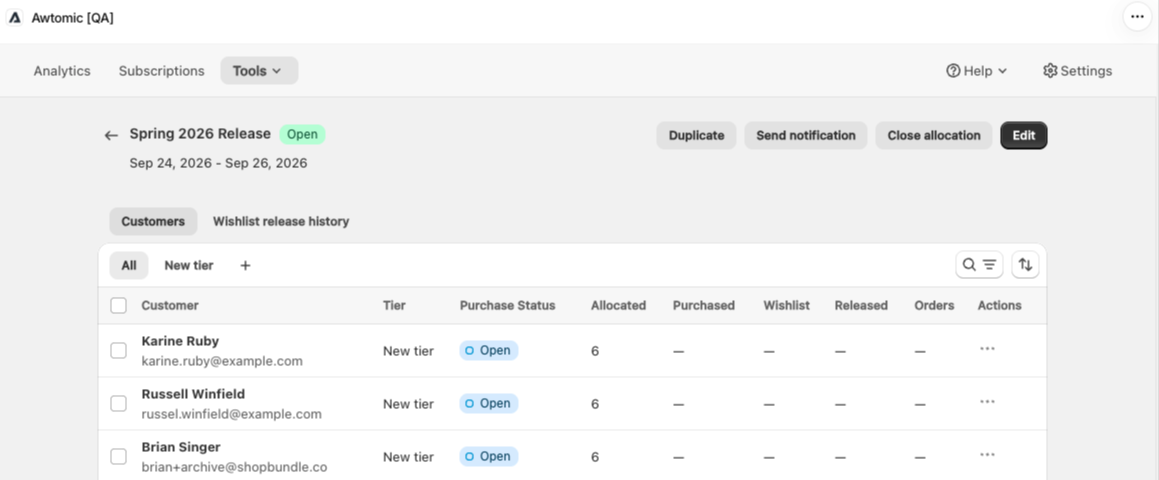
| Open | At least one tier has started and the last tier hasn't ended. | Automatically at the first tier's start time. |
| Closed | Every tier has ended. Customers can't make selections and settings can't change. | Automatically at the last tier's end time. |
Status follows the schedule, so you don't need to open or close an allocation yourself. Choose Same schedule for all tiers, or Set schedule per tier to stagger access, for example to give reserve members a head start.
With per-tier schedules, customers can use the allocation only during their own tier's window. The allocation shows Open from the first tier's start until the last tier's end, even while some tiers haven't started or have already ended.
If manual open and close are enabled for your store, Open allocation opens every tier of a scheduled allocation immediately, and Close allocation closes every tier of an open allocation immediately. Closing early can't be undone.
What you can change while it's open
| You can still change | Locked while open |
|---|---|
| Products, Min, Max, wishlist settings and Default selection | Allocation name |
| The tier minimum | Adding, deleting or renaming tiers |
| Customers: add them with Specify customers manually, move or remove them | Schedule, Email notifications, Delivery method, Shipping dates and Order processing |
Customer changes save immediately. Product and rule changes apply when you save, and customers see them on their next visit. Orders customers have already paid for aren't affected.
After an allocation closes, its settings can't be changed. To reuse its setup, select Duplicate.
What closing does and doesn't do
When an allocation closes:
- Customers can no longer open it or make selections, and it leaves their My allocations list.
- With separate orders, allocation orders already placed are unchanged. Wishlist requests wait until you select Release wishlist.
- With a single order, nothing is charged or shipped. Commitments and wishlist requests wait until you select Release allocation. You can use Export selections to get a file of selections by email.
ImportantClosing doesn't bill, ship or grant anything on its own. Commitments and wishlist requests stay pending until you run a release.
How customers take part
- Notification: when a customer's tier opens, Awtomic sends the allocation welcome email or triggers an "Allocation Open" event in Klaviyo, depending on your Email notifications choice. You can also delay the notification by a number of days, or choose not to schedule it and send it yourself.
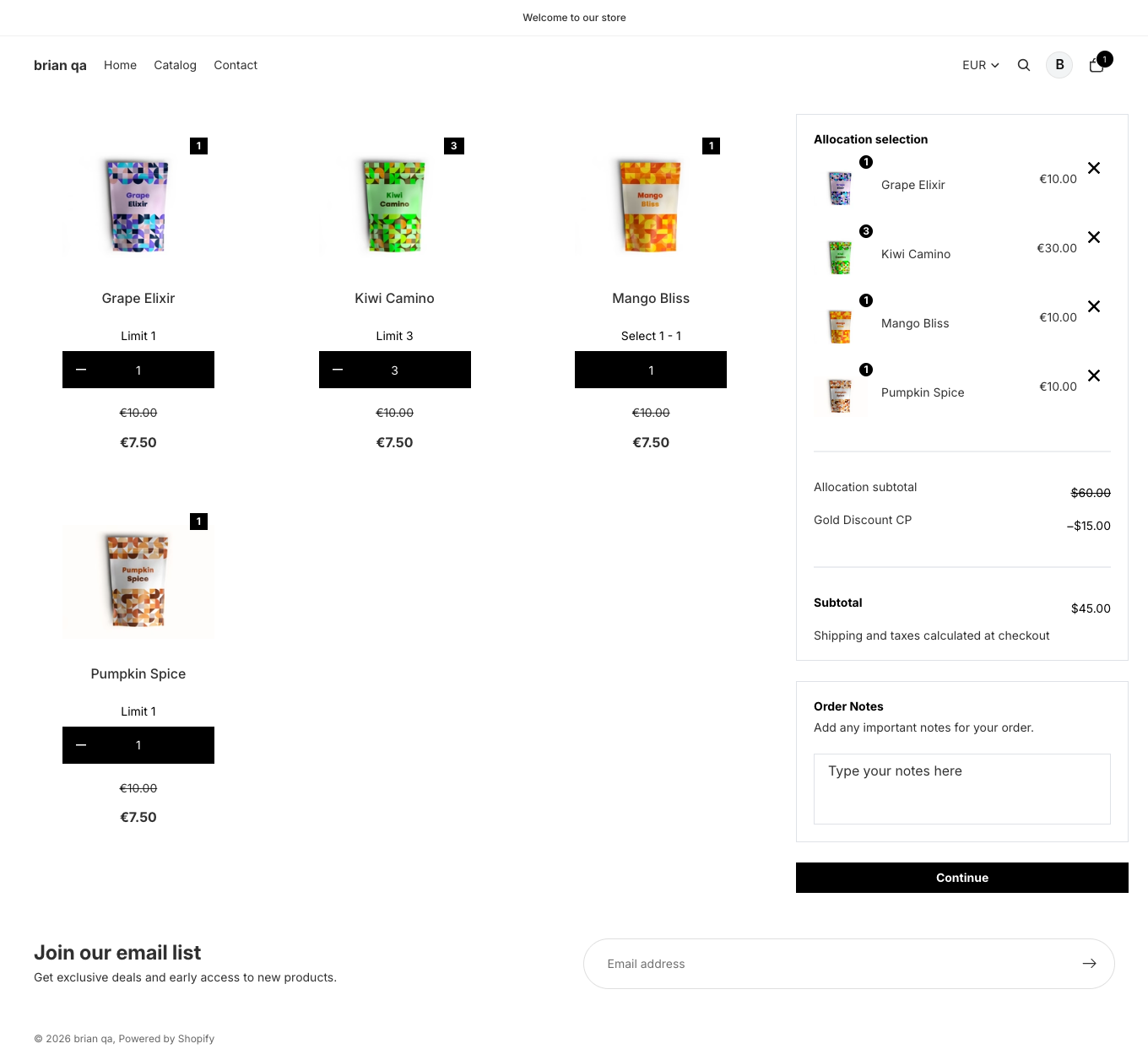
- Allocation page: the link takes customers to their allocation page on your online store, where they set quantities, add wishlist requests and confirm.
- Shopify customer accounts: the Allocations on orders page block adds a My allocations list to the customer's Orders page. Open allocations show as Active with a View allocation button; upcoming ones show as Coming soon.
- Payment: customers with a saved payment method confirm on the allocation page. With separate orders they're charged when they confirm; with a single order, confirming records their commitment and nothing is charged until you release it. For a separate-order allocation, customers with no saved payment method are sent to Shopify Checkout for their allocation items instead. On that path they can't make wishlist requests, and wishlist-only products aren't shown. For a single-order allocation, customers need a saved payment method to confirm: until they add one on the allocation page, Confirm stays unavailable.
If you turn on Let customers return while the allocation is open, customers can come back while the allocation is open: with separate orders they buy the rest of their allocation in additional orders, and with a single order they can revise their commitment until the allocation closes.
Next steps
Continue with Set up an allocation to create your first allocation and confirm its schedule.
Updated about 1 month ago